Choosing a workstation laptop for engineering students starts with something pretty unexciting: reading your department's software requirements. A laptop for coding assignments and MATLAB is a very different purchase from one that needs certified SOLIDWORKS graphics or GPU-accelerated rendering. Buy for the projects you'll actually be working on, rather than assuming every engineering degree needs the biggest graphics card you can afford.
Before you spend more, find out whether your course gives you access to lab computers or remote workstations for the heavy number-crunching. If it does, a lighter laptop can handle lectures, reports, and smaller local jobs while the lab machines do the expensive work. If you'll be running everything on your own laptop, focus on software compatibility, plenty of memory, and steady performance under load before worrying about a fancy screen.
The Quick Take
For CAD and virtual machines, aim for 32GB of RAM. Only go with 16GB if your course requirements and workload are light enough. Get certified graphics if your software requires them, and a dedicated GPU if your rendering or computing tools can actually use one. Neither your degree title nor an eight-core processor decides that for you.
How to choose a workstation laptop for engineering students
First, write down the apps, versions, and operating systems your department requires. Then check each one's system requirements against that list, including any rules about certified graphics. SOLIDWORKS, for example, specifies certified graphics cards and drivers, while MATLAB's general requirements don't call for a dedicated GPU at all.
Next, separate drawing a model from calculating how it behaves. The graphics card handles the CAD viewport you work in, but whether simulations get GPU acceleration depends on the app and the solver you pick. ANSYS's GPU acceleration supports the CPU on certain operations, so "it runs simulations" isn't a good enough reason on its own to buy a particular GeForce card.
For CPU-heavy work, pick a processor based on how well your apps use multiple cores. Intel's Core Ultra 9 285H and AMD's HX 370 are good examples of modern chips, but neither name guarantees your projects will run without slowdowns. Think of eight physical cores as a sensible target for parallel work, not a hard rule, and compare sustained performance results that match your workload before paying extra for a faster-sounding chip.
Budget for memory and storage separately. SOLIDWORKS lists 16GB as the minimum and recommends 32GB, so 32GB is a sensible target for CAD. Save 64GB for when you know you'll need it, like working with large datasets or running several virtual machines. A 1TB PCIe Gen 4 SSD is a good starting point for storage, though not every app actually requires that much.
Recommended product categories
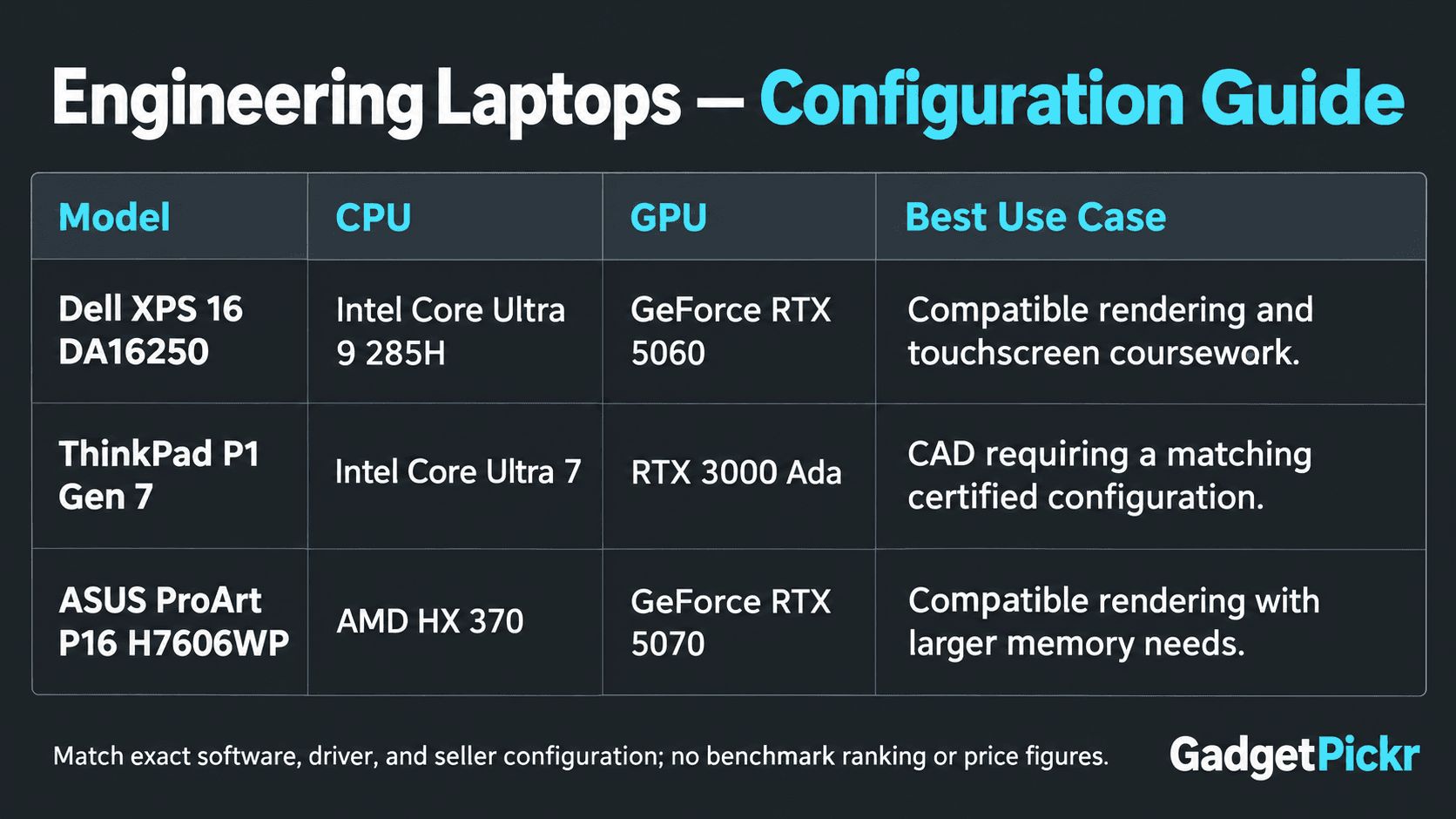
Go for a creator laptop if your tools work well with consumer graphics cards and you also want a sharp, detailed screen. In its H7606WP configuration, the ASUS ProArt P16 pairs an HX 370 with an RTX 5070, while the linked Dell XPS 16 combines a Core Ultra 9 285H with an RTX 5060. These are examples of the category, not a guarantee they'll work with every CAD program or simulation solver.
If your course requires certified workstation graphics, start with a mobile workstation like the ThinkPad P1 Gen 7. Choose a configuration with professional RTX Ada graphics, then check your software maker's certification database for that exact laptop, GPU, driver, and software version. A "workstation" label on its own isn't enough.
If your coursework is mostly programming, a smaller laptop like the Dell XPS 14 may be all you need, as long as its configuration meets your department's requirements. It's lighter and easier to carry between lectures. If you need it to last a full day of coding away from an outlet, check independent battery tests for the exact configuration you're buying.
Common mistakes
Don't judge cooling by how thick a laptop is or how many fans it has. Look for results from repeated heavy workloads on the exact configuration you're considering. Some thin laptops can't hold their top speeds for long before slowing down to manage heat. If long renders or simulation runs make up most of your coursework, choose proven sustained performance over a slim design.
Gaming benchmarks also can't tell you whether a laptop is certified for CAD. If SOLIDWORKS compatibility matters, look up the supported hardware and drivers instead of assuming a fast GeForce card is the same as a professional RTX one. Certification and GPU computing support are two separate questions.
Buying the cheapest memory option can lock you out of an upgrade you'll want later. How much memory you actually use depends on your apps, the size of your projects, and how much RAM you give each virtual machine. If you expect to run CAD alongside virtual machines, 32GB gives you a lot more breathing room, and if the memory is soldered, you can't add more later. Check the service manual before assuming the RAM can be replaced.
Finally, don't rule out integrated graphics just because you're studying engineering. If your required apps support them and the heavy work runs on campus machines, a more modest laptop leaves more of your budget for memory, storage, and useful accessories.
Buying checklist
Open the spec sheet for the exact model number, not just the general product line. Check that its operating system, CPU, RAM, GPU, and driver support all match your department's list. For CUDA-accelerated tasks, check the app's supported GPU list rather than assuming any "RTX" card will do.
In the memory section, look for words like "soldered," "onboard," "SO-DIMM," or "LPCAMM2," along with the maximum supported capacity. LPDDR5X doesn't automatically mean you can't replace it. The P1 Gen 7, for example, uses a replaceable LPCAMM2 module. Check SSD slots separately too, because replaceable storage doesn't mean replaceable RAM.
For the screen, a 16:10 aspect ratio and at least 2.5K resolution are nice to have for code and drawings, but confirm the actual resolution and touch support of the panel you're buying. Compare the weight of the exact configuration, and remember to add the charger. Under 4.5 pounds is a good portability target, but plenty of capable workstations go over it.
Make sure the ports match your gear: Thunderbolt 4 or USB4 for fast external storage, and USB-A or an adapter for lab equipment. If you want to charge over USB-C, check the supported input power and the recommended adapter. Lenovo specifically warns that lower-power USB-C chargers can slow down both charging and system performance.
Recommended Products
Use these three configurations to compare different priorities. Go with the Dell or ASUS for workloads that run well on consumer graphics, and consider the ThinkPad's professional graphics when certification matters. Check the seller's exact configuration and warranty before ordering, because a product name alone doesn't tell you every component inside.
Dell XPS 16 Premium Touchscreen
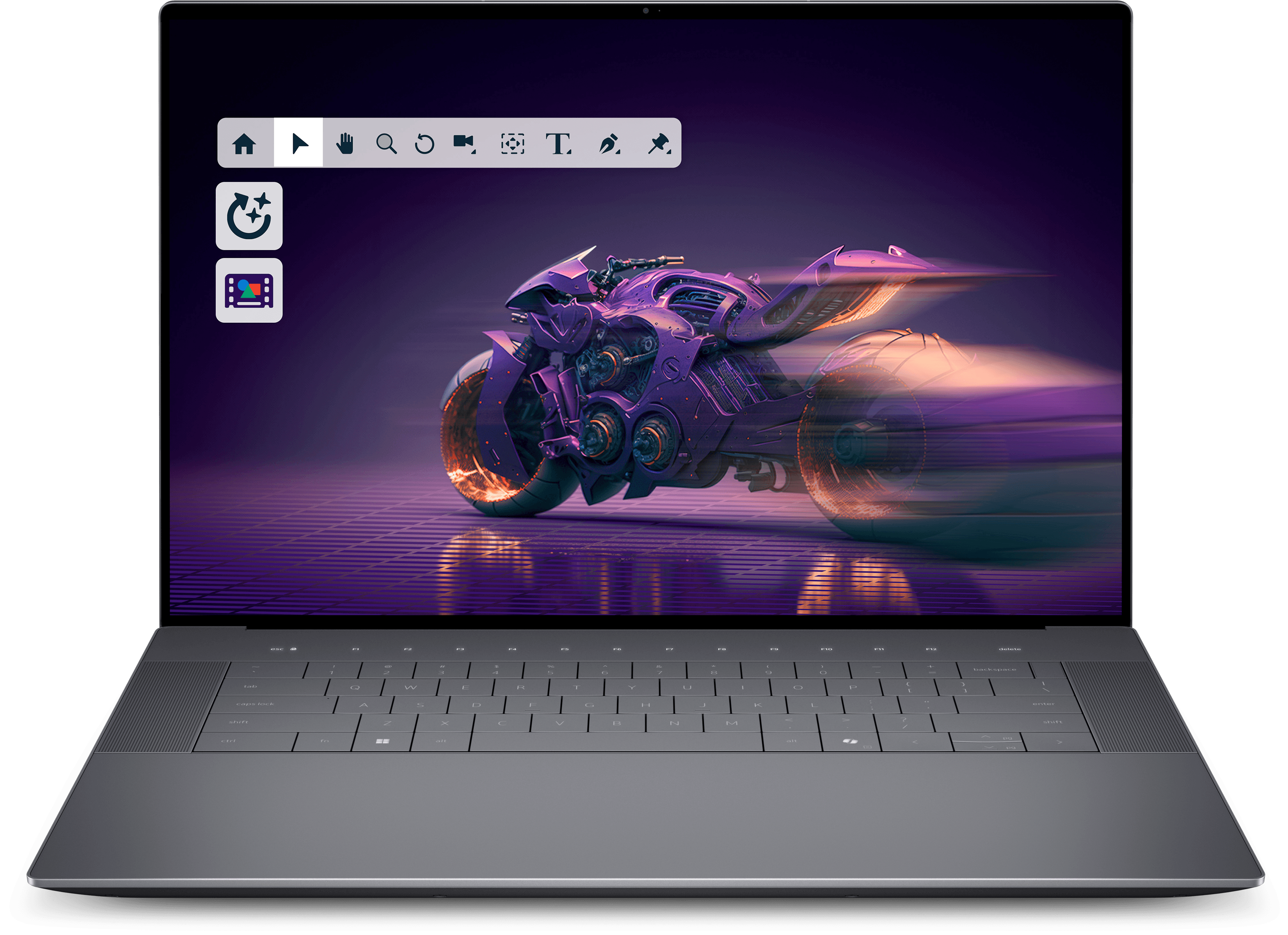
Pick the XPS 16 if your work suits its Core Ultra 9 285H, RTX 5060, and fixed 32GB of memory. This listing is for the DA16250 model, which Dell also calls the Dell 16 Premium. Its 4K OLED touchscreen is a nice display, but it doesn't mean the laptop is certified for engineering software.
Pros
- Core Ultra 9 285H with RTX 5060 graphics
- 32GB RAM and 1TB SSD in this listing
- 4K OLED touchscreen option
Cons
- Onboard RAM can't be upgraded
- A GeForce GPU alone doesn't mean CAD certification
Lenovo ThinkPad P1 Gen 7
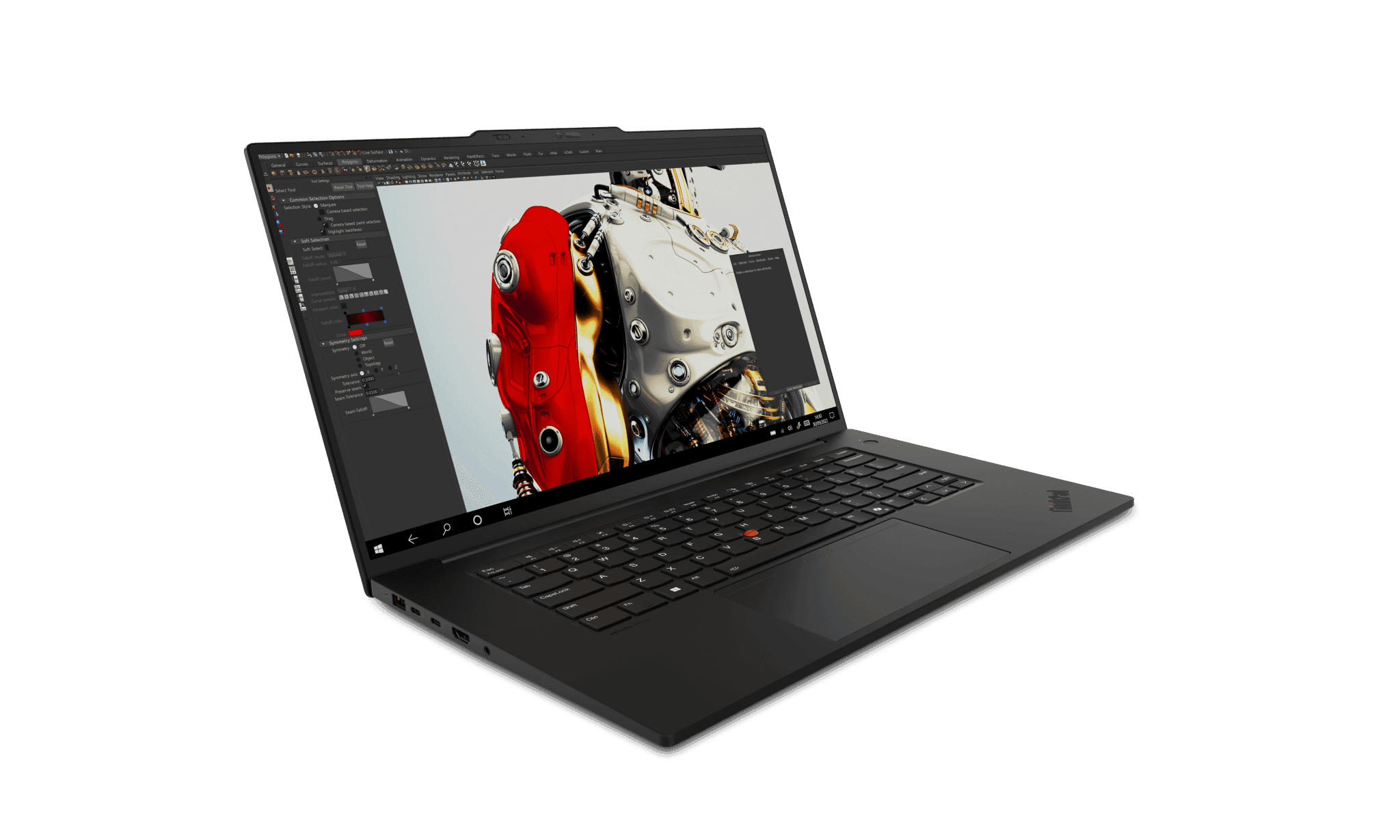
Consider this P1 configuration if professional graphics and upgradability matter to you. The linked listing has a Core Ultra 7, RTX 3000, and 32GB of RAM, and Lenovo confirms RTX 3000 Ada support for this generation. Check the exact configuration in your software's certification database before you buy.
Pros
- Available with professional RTX Ada graphics
- Replaceable LPCAMM2 memory
- Two SSD slots for extra storage
Cons
- Certification has to match your software version and driver
- Lower-power USB-C chargers can limit performance
ASUS ProArt P16 H7606WP (2025)
Pick the ProArt P16 if your rendering tools can use its RTX 5070 and your work really needs the 64GB of RAM in this listing. ASUS solders the memory to the board, so buy the amount you need from the start. Check the exact display version too, rather than assuming it matches the specs of another H7606 configuration.
Pros
- HX 370 processor with RTX 5070 graphics
- 64GB RAM in the linked configuration
- USB4 and USB-A ports
Cons
- Onboard RAM means no memory upgrades later
- Consumer graphics don't replace a certification check
A workstation laptop for engineering students is only worth it if it meets your course's actual requirements. Start with software compatibility, aim for 32GB of RAM for CAD, and pay for certified graphics or extra computing power only when your workload needs it. Then pick the screen, ports, and weight you can live with all week.
Sources & References
Specifications and claims in this analysis were cross-referenced against the sources below.
- Dell XPS 16 (2026) review | Tom's Guidetomsguide.com
- Dell XPS 16 (2026) review: A beautiful laptop with compromisespcworld.com
- XPS 16-inch Premium Lightweight Laptop with Intel Core Ultra | Dell USAdell.com
- The world's greatest laptop, almost. Dell's 2026 XPS 16 lands ...techradar.com
- Dell XPS 16 (2026) Review: A flagship return to formtomshardware.com
- Dell XPS 16 (2026) - Review 2026au.pcmag.com
- www.laptopmag.com · laptops · windows-laptopsLenovo ThinkPad P1 Gen 7 review: A nearly perfect workstationlaptopmag.com
- Asus ProArt P16 H7606WPnotebookcheck.pl
Frequently Asked Questions
Not for every course. MATLAB's general requirements don't call for one, though rendering or GPU-computing tools that support it can benefit. For SOLIDWORKS, check the list of certified cards and drivers. And ask whether heavy calculations will run on your laptop or on department workstations before you buy.