If you're working out how to choose a gaming laptop for work and play, start by making two lists: the games you want to run, and the work you can't afford to have interrupted. Someone who lives in spreadsheets and email needs very different hardware from someone editing video or running CAD. Buy for those jobs first. Then decide how much weight, fan noise, and charger bulk you're willing to carry around.
Pay as much attention to battery life as you do to the graphics card. When a laptop's dedicated GPU stays active, it uses more power, even if all you're doing is a video call. Look for battery tests based on office-style workloads, and check whether the laptop can switch the dedicated GPU off while you work.
When it comes to the screen, color coverage and color accuracy aren't the same thing. A panel can cover 100% of DCI-P3 and still show some shades incorrectly. If you edit photos or video, look for evidence that the screen is properly calibrated. If you mostly write documents and play competitive games, focus on sharp, readable text and a fast refresh rate instead.
The Quick Take
Get a laptop with a dedicated GPU if you want to play demanding games locally or do GPU-heavy work. Go for 32GB of RAM if you edit, run virtual machines, or keep a lot open at once. 16GB is fine for simpler routines. Before choosing a configuration, compare the exact GPU power limit, the screen, charging support, and whether you can upgrade anything later.
How to Choose a Gaming Laptop for Work and Play: Step-by-Step
Start with the resolution you want to play at and the games themselves. For 1440p gaming or GPU-heavy creative apps, shortlist laptops with an RTX 5070 or RTX 5080 Laptop GPU, then compare benchmarks at the settings you'll actually use. On a tighter budget, mid-range GPUs handle 1080p well. Either way, check the Total Graphics Power (TGP). The same GPU can perform quite differently depending on how much power the laptop lets it draw, so compare benchmarks for the exact configuration, not just the chip name.
For a laptop that pulls double duty, 32GB of RAM is a sensible target if you edit, run virtual machines, or keep lots of apps open. Check what your main apps actually need before paying for more. And find out whether the memory is soldered or uses SODIMM slots. If it's soldered, whatever you buy is what you're stuck with. If it has slots, check the maximum supported capacity and how many slots are already filled.
A 2560x1600 screen with a 16:10 aspect ratio gives you more vertical space for documents than a standard widescreen panel. Pick OLED if you want deep contrast and fast pixel response, or IPS if you'll spend long days with the same taskbars and toolbars on screen and want to avoid any OLED burn-in worries. If you'll switch between work and gaming a lot, look for Advanced Optimus or a MUX switch, and check how the laptop switches back to integrated graphics.
Recommended Product Categories
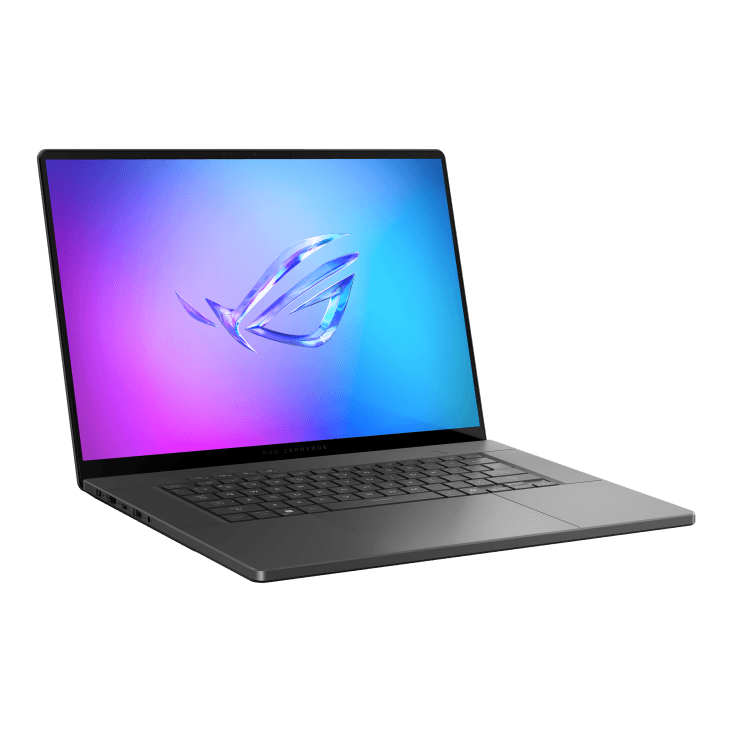
If you carry the same laptop to work that you game on at home, look at a thin gaming laptop like the Zephyrus G16. The 2025 model pairs a 240Hz OLED screen with dedicated graphics. ASUS also includes a Silent mode that can stop the fans entirely during light work. They can still spin up if things get warm, though, so don't count on total silence through every meeting.
Go for a modular design if being able to swap parts matters more to you than having the slimmest laptop. Framework's Laptop 16 has replaceable graphics modules, socketed memory, and swappable Expansion Cards for its ports. That means you can replace or upgrade some parts down the line instead of buying a whole new laptop, though what upgrades are available in the future depends on what Framework releases.
If creative work is your main priority, compare the ProArt P16 H7606WP and the Dell 16 Premium. Both can be configured with up to 64GB of memory, but their screen and GPU options differ. Look at the full configuration. A "creator" label or a 4K OLED touchscreen doesn't tell you anything about gaming performance.
Common Mistakes
Don't rank laptops by GPU name alone. Check the power limit and how well the laptop keeps cool, then look at sustained performance rather than a quick burst. If you work in a quiet shared office, pick a laptop whose fan noise under light load suits you, even if another model tops the gaming charts.
Don't choose a screen on refresh rate alone, either. A high refresh rate tells you nothing about brightness, color coverage, calibration, or how well the screen handles glare from a nearby window. Check all of those alongside the refresh rate, especially if you edit photos or work on CAD.
A USB-C port on its own doesn't tell you much about charging or monitor support. Check the spec sheet for how much power the port can take in and whether it can drive an external display. For serious gaming, plan on using the laptop's main power adapter. A compact office charger is a separate purchase with a different job.
Buying Checklist
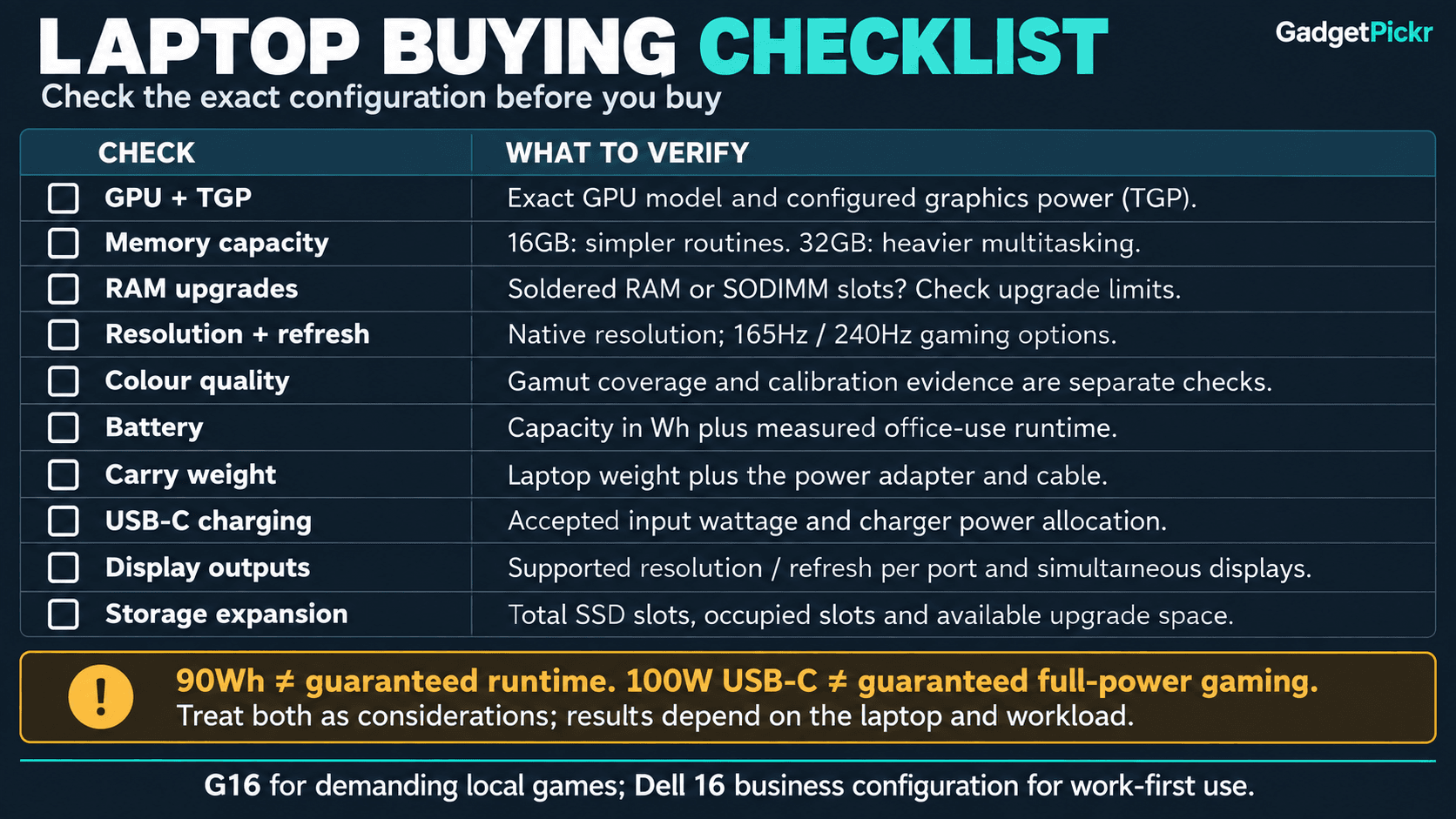
Open the spec sheet for the exact configuration you're looking at, not the overview page for the whole model range. Note the GPU model and its TGP, how much RAM is installed, whether the memory is soldered or socketed, and how many storage slots are in use. If you plan to upgrade later, check the service manual before ordering.
For the screen, check resolution, refresh rate, brightness, and stated sRGB or DCI-P3 coverage. Look for 165Hz or 240Hz if fast-paced gaming matters to you. For color-critical work, add calibration results to your list, and don't treat color coverage as a measure of accuracy.
For travel, compare battery capacity, battery life in office use, and the weight of both the laptop and its charger. A battery close to 90Wh is a good sign, but capacity alone won't guarantee you'll get through a full workday. A compact USB-C charger like the UGREEN Nexode 100W can work well for charging on the go, but only if the laptop's charging requirements and the charger's power output per port actually match.
Finally, compare the laptop's ports with what's actually on your desk: monitor, dock, headset, and accessories. Check HDMI capabilities, Thunderbolt or USB4 support if you need it, the webcam specs, and the keyboard layout. Pick the laptop that connects to your setup without forcing you to buy an adapter you weren't expecting.
Recommended Products
These two show very different ways to buy. Get the G16 if you want to play demanding games and work on the same machine. Get the Dell if work comes first and you don't need high-end gaming.
ASUS ROG Zephyrus G16 (2025)
The G16 shows you can get proper gaming hardware without lugging around a bulky desktop replacement. Its 2560x1600 OLED screen runs at 240Hz, and the range includes Advanced Optimus and a MUX switch. Pick your memory carefully when you order, because the RAM is soldered. Storage, on the other hand, uses replaceable M.2 drives.
Benefits and Limitations
Pros
- 240Hz OLED screen combines a fast refresh rate with wide color coverage
- Graphics switching suits days that mix work and gaming
- Replaceable M.2 storage you can upgrade later
Cons
- Soldered memory means the RAM you buy is the RAM you keep
- Silent mode only stops the fans under light loads, so it won't stay quiet during heavier work
Dell 16 Touchscreen Business
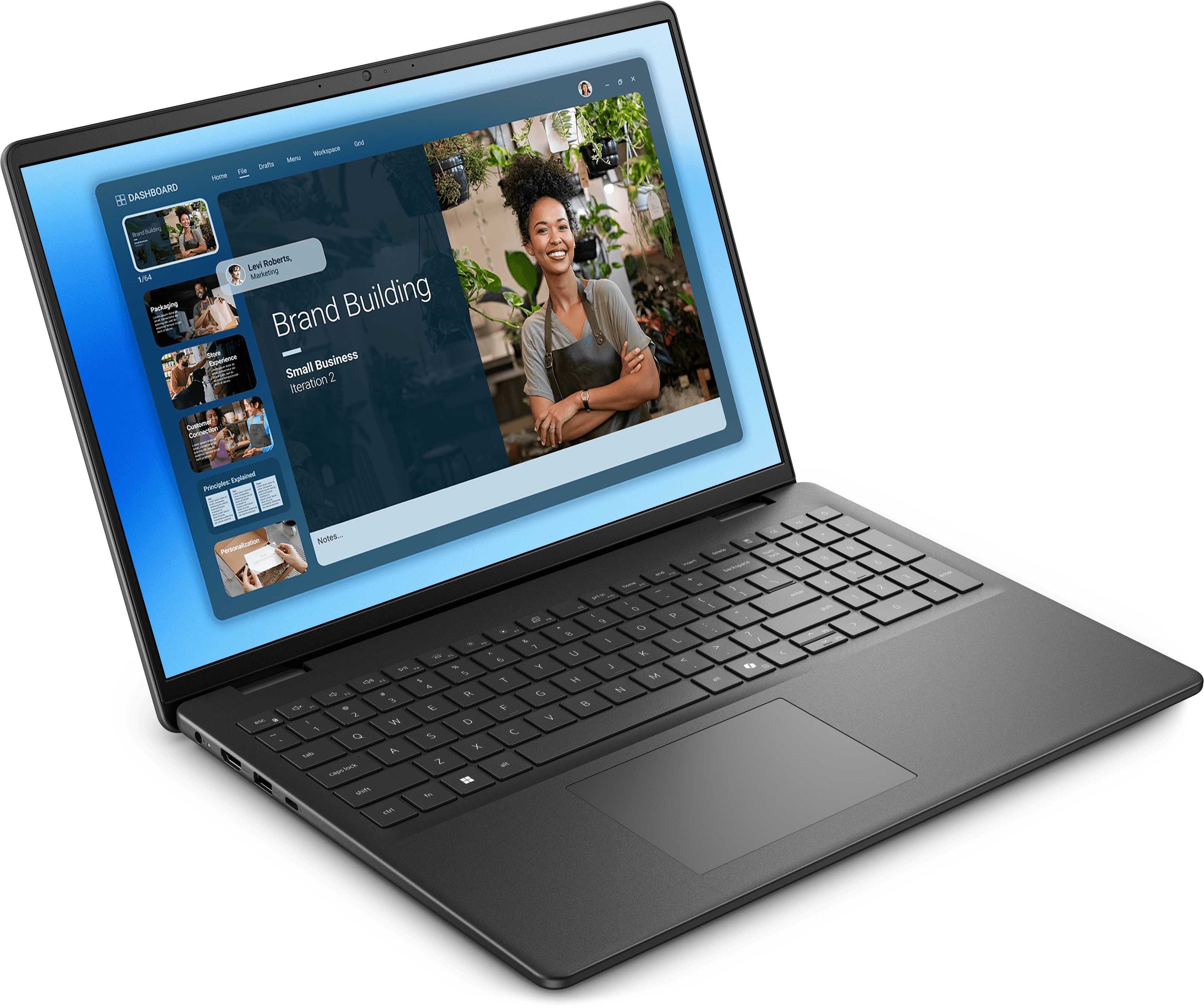
This Dell is for people whose work matters far more than demanding games. The listing shows a Core 7 150U, 16GB of RAM, a 1TB SSD, and integrated graphics. It's also a good reminder to check the graphics spec carefully, because a big touchscreen or a "business" label says nothing about whether a laptop can handle games.
Benefits and Limitations
Pros
- 16GB of memory and a 1TB SSD are a solid starting point for office work
- Touchscreen gives you another way to work besides mouse and keyboard
- Integrated graphics are all you need if work comes first
Cons
- No dedicated GPU, so it can't do the gaming that the G16 can
- Check the exact model and service documentation before planning any upgrades
Sources & References
Specifications and claims in this analysis were cross-referenced against the sources below.
- Best Gaming Laptops 2026 Reviewed, Tested ... - Techdowstechdows.com
- Best Gaming Laptop 2026: Tested & Ranked (With Real Benchmarks)axis-intelligence.com
- 10 Best Gaming Laptops (2026) Tested and Reviewedthirstybear.com
- Asus ROG Zephyrus G16 (2025) review: "sharpens the Blade"gamesradar.com
- Best Gaming Laptops 2026: Tested and reviewed - Tom's Hardwaretomshardware.com
- A slim gaming laptop now with an RTX 5090 and 64 GB of RAM - Asus ROG Zephyrus G16 2025 reviewnotebookcheck.net
- The Best Gaming Laptop in 2026 Costs $1,300, Not $4,000 | Kinjakinja.com
- Best Gaming Laptop in 2026 - Kinjakinja.com
Frequently Asked Questions
Get 32GB if you edit, run virtual machines, or juggle a lot of apps at once. For documents and lighter gaming, 16GB is usually enough. Check whether the memory is soldered. On the G16, it is, so whatever you choose at checkout is what you'll have for the life of the laptop.