Samsung Odyssey OLED G5 Review: Contrast Over Extras
The G50SF makes sense for 1440p PC gamers who want QD-OLED contrast. Its HDMI limit, basic stand, and burn-in risk with static content set clear limits.
Buy this monitor for a gaming desk where deep contrast in dark scenes matters more to you than the highest possible refresh rate. This Samsung Odyssey OLED G5 review focuses on the G50SF, a 27-inch 1440p QD-OLED that tops out at 180Hz and keeps its feature list deliberately short. The best reason to buy it is that every pixel makes its own light. The best reason to skip it is OLED burn-in risk if your day is mostly static desktop work.
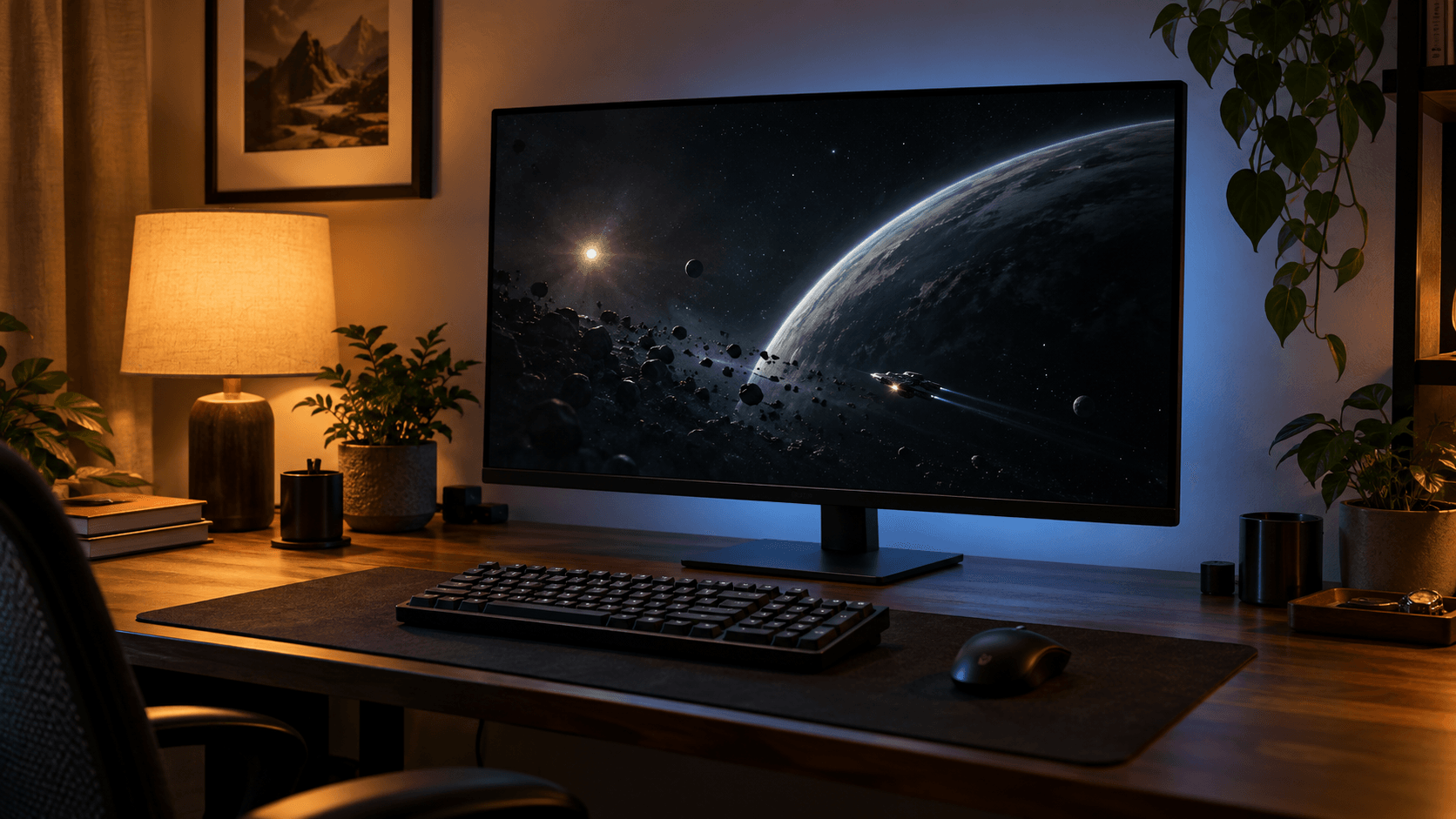
Because each pixel lights itself, a bright object can sit right next to pure black without a backlight bleeding into the area around it. That makes a real difference in space games, shadowy adventure games, and films watched with the lights off. And you get all of that without paying for a 360Hz OLED like the Alienware AW2725DF.
Just make sure you can live with the trade-offs. You need DisplayPort for the full refresh rate, the stand only tilts, and there's no USB-C for plugging in a laptop. This is a focused gaming monitor, and deciding gets a lot easier once you accept those gaps as part of the deal.
Some links in this article are affiliate links, which helps support GadgetPickr at no extra cost to you.
The Quick Take
Buy the G50SF for 1440p PC gaming in a room where you can control the lighting. QD-OLED contrast is the main draw, and 180Hz over DisplayPort is plenty for most games. Skip it if you spend your workday in spreadsheets, want a single cable for your laptop, or are building an esports setup around 360Hz.
Verdict
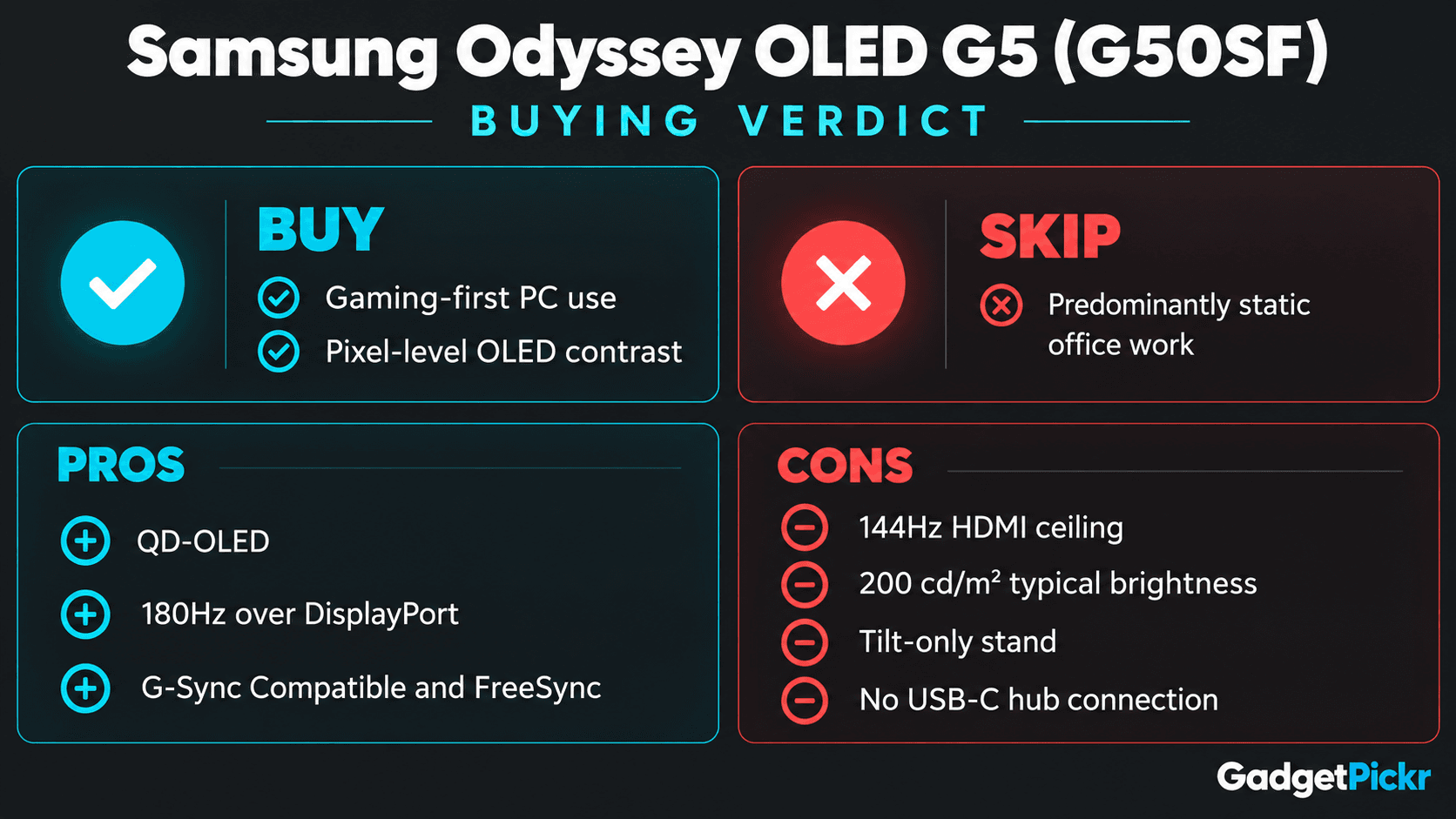
That's the core of this Samsung Odyssey OLED G5 review: buy the G50SF for a gaming-first PC desk, because its QD-OLED panel gives you per-pixel lighting and deep blacks. Skip it if you mostly do static office work, because burn-in risk makes it a poor match.
Its 27-inch QHD screen and 180Hz over DisplayPort make for a focused package. HDMI tops out at 144Hz, typical brightness is 200 cd/m², and the tilt-only stand is pretty limited without a monitor arm. Know all of that going in and nothing will catch you off guard.
Choose it if OLED contrast is the upgrade you're after and the simpler connections work for your desk. If you want a higher refresh rate, USB-C for your laptop, or a screen for long stretches of static work, one of the alternatives will suit you better. The G50SF makes the most sense when gaming is the main reason you're buying.
Odyssey OLED G5 (G50SF)
Best for PC gamers who want OLED blacks and wide color, can connect over DisplayPort, and play in a room with controllable lighting.
An entry point into QD-OLED gaming, with fewer desk-friendly extras than pricier models.
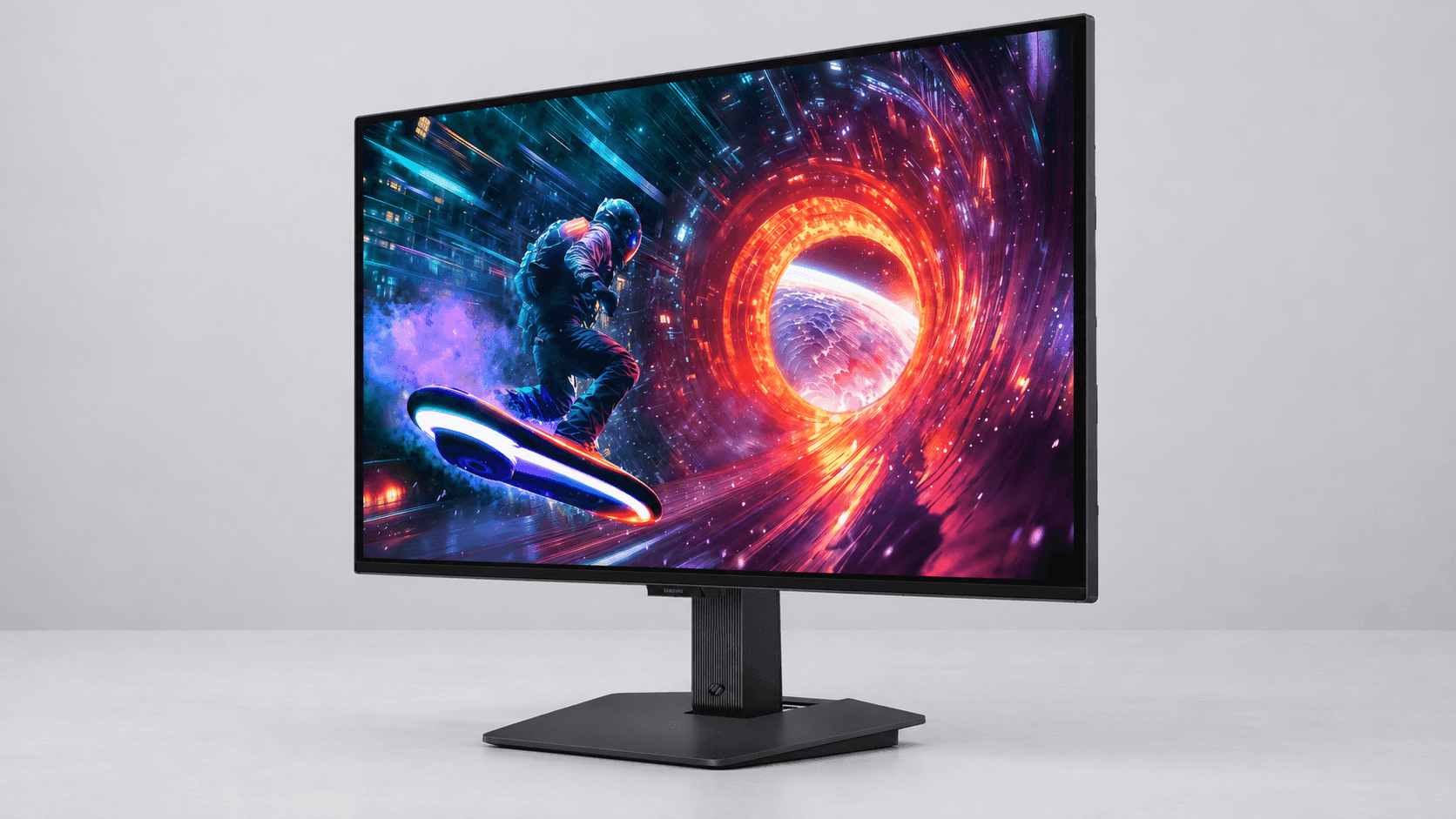
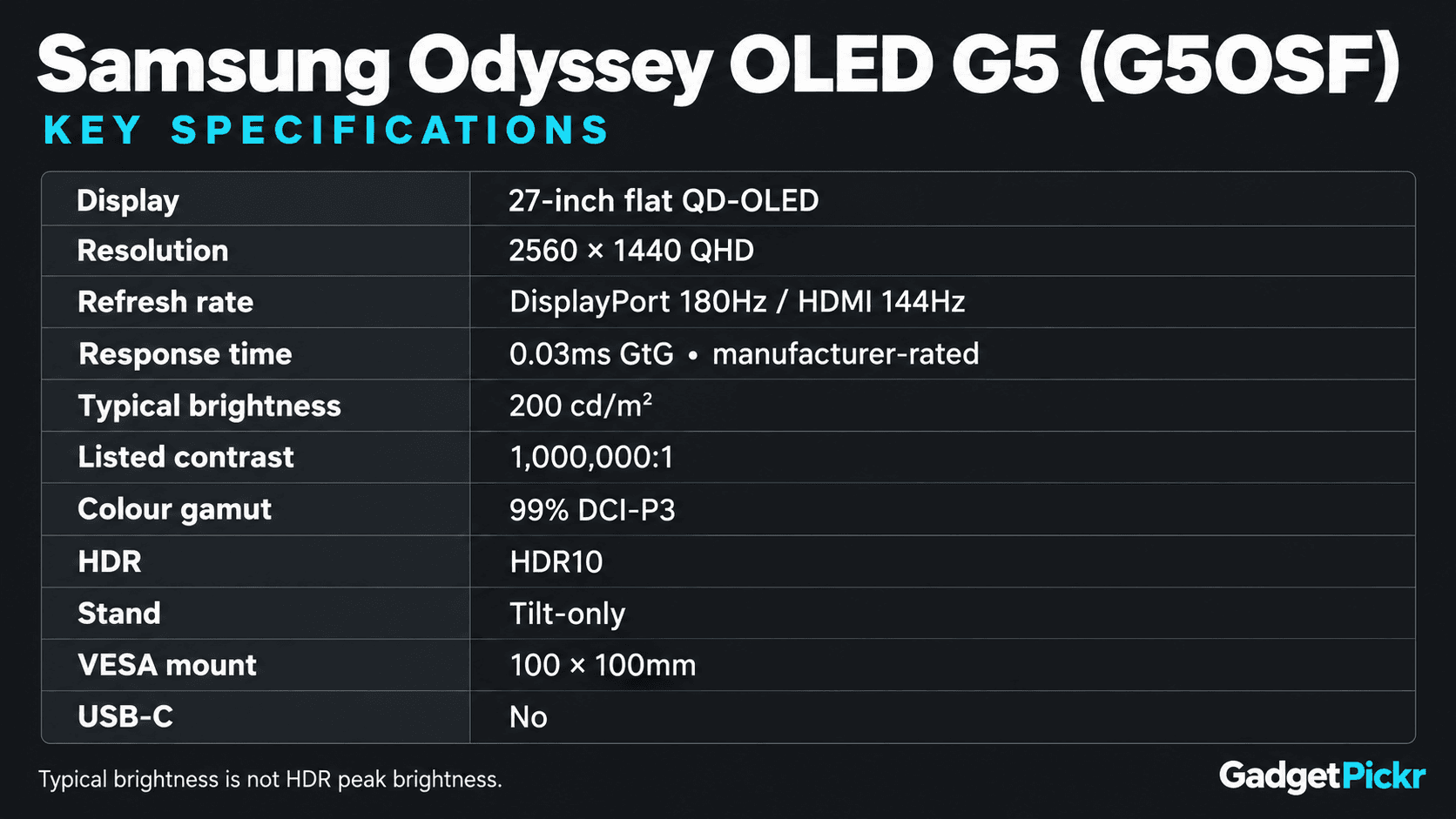
The G50SF is built around a flat 27-inch QD-OLED panel with a native 2560 × 1440 resolution. That works out to about 109 pixels per inch, without the heavy GPU load of a 4K screen. It's a natural fit for a typical gaming desk, especially if your graphics card and settings are already tuned for 1440p.
Samsung lists a 1,000,000:1 contrast ratio and a 0.03ms gray-to-gray response time. Because each pixel is controlled on its own, you don't get the backlight glow or local-dimming halos you'd see on an LCD. That response figure only describes how fast pixels change color, though. It doesn't tell you the total input lag, and it doesn't make every kind of motion blur go away.
You'll need DisplayPort to hit the full 180Hz. Over HDMI 2.0, it tops out at 144Hz at 1440p.
It supports both NVIDIA G-Sync Compatible and AMD FreeSync, which keep the monitor in sync with your graphics card as frame rates go up and down. That's great for smooth gameplay, but your GPU still has to produce the frames, and the refresh limits above still apply.
On the color side, you get 99% DCI-P3 coverage, Pantone validation, and HDR10 support. Typical brightness is 200 cd/m², so this panel is happiest in a room where you can control the light. Keep in mind that's the everyday brightness figure, not how bright HDR highlights can get.
The screen has Samsung's Glare Free anti-reflective coating on a slim chassis.
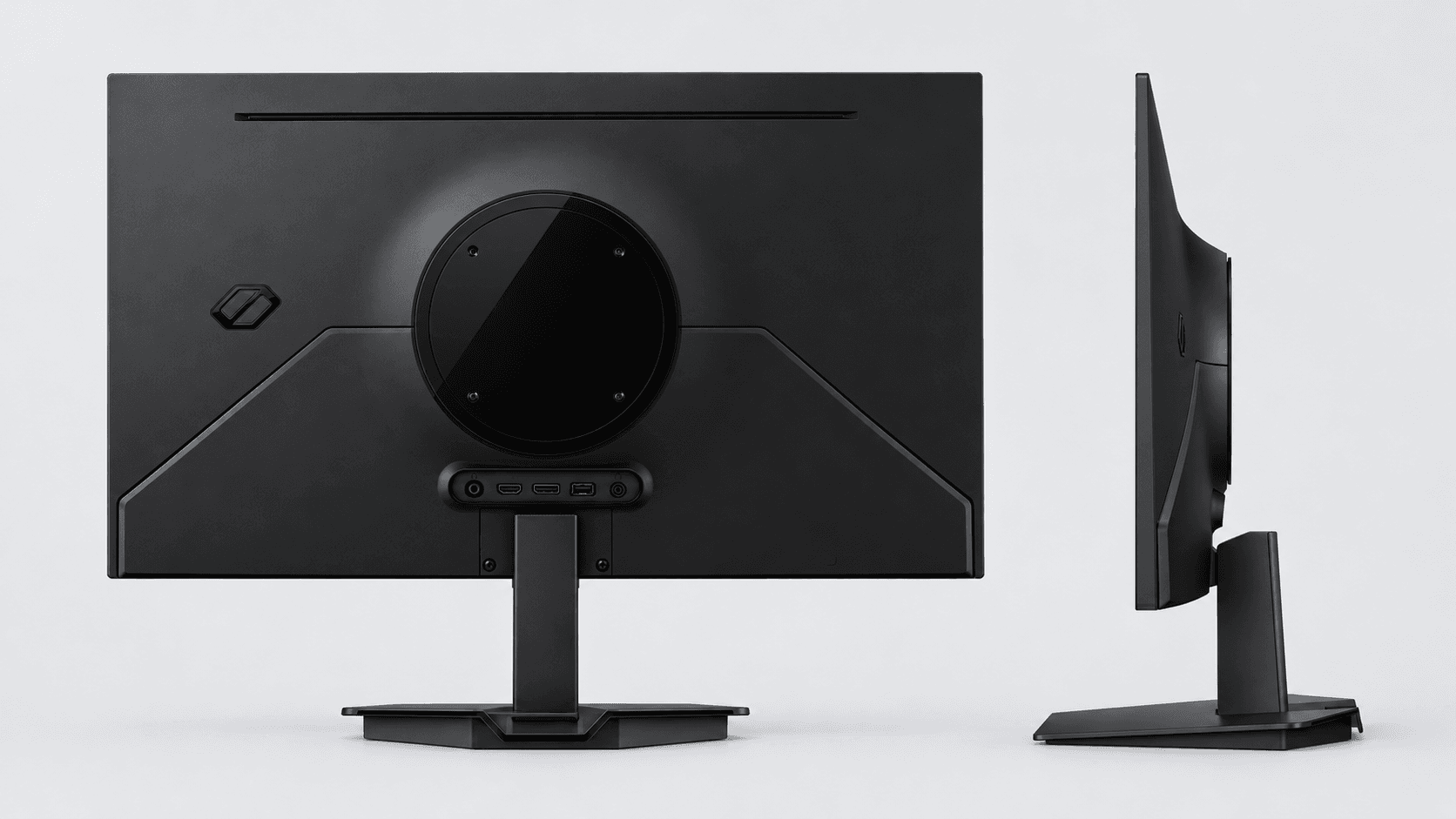
The included stand only tilts, which keeps setup simple, and the 100 × 100mm VESA mount lets you move to an adjustable monitor arm if you want more flexibility. For connections, you get one DisplayPort input, one HDMI input, and a headphone jack. There's no USB-C for video and charging, and no built-in USB hub.
Key Specs and Compatibility
Plan around the connection you'll actually use. A desktop graphics card with DisplayPort can reach the full 180Hz, while anything on HDMI is limited to 144Hz at 1440p. If you're connecting a laptop, its video output and any adapter or dock also need to support the mode you want.
With standard video inputs, it's easy to hook up a PC plus a second device. It isn't a docking station, though. A laptop still needs its own charger, and your keyboard and mouse plug in somewhere else. If you want one cable to handle video, charging, and accessories, look at a different monitor.
Samsung Odyssey OLED G5 Review: What Stands Out
Per-pixel contrast is what this monitor is all about. In a dark scene, unlit pixels can stay fully off while the ones next to them show bright detail. On an LCD, a backlight or dimming zone has to light up a whole area. Here, it happens pixel by pixel.
If you're deciding between this and another fast LCD, that's the difference that matters. It gives the G50SF a clear reason to exist beyond just being another high-refresh monitor. Games set in dark environments are where it really makes sense.
Wide color coverage is another plus for games and movies. Samsung lists 99% DCI-P3 coverage and Pantone validation. Pantone validation is a good sign for color, but if your work depends on exact color accuracy, it's still worth calibrating the screen yourself.
Refresh rate and pixel response handle different parts of motion. The 180Hz ceiling is how often the screen can update, while the 0.03ms GtG figure is how fast each pixel changes shade. OLED's fast transitions help a lot, but you can still see some motion blur from the way the image is held on screen between refreshes, even when pixels change almost instantly.
1440p is also a lot easier on your graphics card than 4K at the same settings. That makes it a practical resolution to build around, but it doesn't guarantee every game will hit 180 frames per second. Think about the frame rates you already get in the games you play most.
Strengths
Dark-scene gaming is its clearest strength, and it comes straight from how the panel works. A bright sign against a night sky doesn't need a backlight zone that also lights up the black around it. If that kind of contrast is the upgrade you want over your current LCD, the G50SF gives you a solid reason to switch.
For shooters, racing games, and fighting games, fast pixel response and 180Hz over DisplayPort cover two important bases. It also supports adaptive sync from both NVIDIA and AMD, so you're not locked into one brand of graphics card.
Its wide color range makes it a good fit for both games and video. And because it's 1440p rather than 4K, it's a much easier target for midrange graphics cards that would struggle to drive high frame rates at higher resolutions.
Two video inputs mean you can keep a second device plugged in alongside your PC, like a laptop or a console. Just remember the 144Hz HDMI limit if you'll use that second device a lot.
OLED Safeguard adds some built-in panel protection, so preventing burn-in isn't entirely up to you. Samsung lists heat-based brightness control, automatic dimming for logos and taskbars, and a screen saver. These help, but they don't remove the underlying need to be careful with static content.
Weaknesses
Brightness is the first trade-off if your desk sits near an unshaded window. Samsung rates typical brightness at 200 cd/m², compared with 350 cd/m² for the Dell S2725QS and 400 cd/m² for the Alienware AW3425DWM, both LCD monitors.
An anti-glare coating cuts reflections, but it doesn't make the screen any brighter. If daytime visibility matters more to you than dark-room contrast, a brighter LCD is the better place to start. Buy for the room you actually have, not just the way it looks during evening gaming sessions.
HDMI is the second limit. At 1440p, it stops at 144Hz, so a PC or laptop connected only over HDMI can't reach 180Hz. A high-refresh panel doesn't help much if your cable is holding it back.
There's no USB-C, no USB passthrough for accessories, and no single-cable laptop charging. Productivity monitors like the BenQ PD2770U offer USB-C power delivery, and the MSI MPG 271QRX brings that same convenience to an OLED gaming monitor. With the G50SF, you'll need to handle laptop power and accessories separately.
The stand is basic too. Tilt lets you adjust the viewing angle, but you can't raise it, swivel it, or turn it to portrait. If the included stand doesn't put the screen where you need it, a compatible VESA arm is the easy fix.
Burn-in is still a real concern if you use the screen all day. Static elements like toolbars and taskbars keep showing up in the same places, which is exactly why Samsung adds logo and taskbar protection. Those features help, but if your workday is dominated by fixed windows, that's a strong reason to go with an LCD instead.
Best Alternatives
Start with whichever limitation bothers you most. These alternatives fix different things: higher refresh rates, laptop connectivity, an LCD panel, or a wider screen. No single one solves everything.
The MSI MPG 271QRX sticks with a 27-inch QHD QD-OLED but raises the refresh rate to 360Hz and adds USB-C with laptop charging. You give up the G50SF's simple setup in exchange for more connections, and you still need to take the same care with static content.
The Alienware AW2725DF offers 360Hz QHD QD-OLED for players who want a higher refresh rate. It's still an OLED, though, so it comes with the same burn-in considerations.
If you're leaning toward high-refresh esports but would rather have an IPS LCD, the Acer Nitro XV272U W2 runs 2560 x 1440 at 240Hz over DisplayPort. Being an LCD, burn-in isn't the concern it is with OLED.
The HP Omen 34c G2 swaps OLED's pixel-level lighting for a curved 34-inch, 3440 × 1440 VA screen at 180Hz. Its main appeal is the extra width for games and side-by-side windows.
Who Should Buy It
Buy it if your monitor is mainly for PC gaming and you want OLED contrast more than a higher refresh rate. That's the strongest case for this particular monitor. A 27-inch QHD screen fits a normal desk, and DisplayPort gets you the full 180Hz.
It's a natural fit for players who split their time between atmospheric single-player games and competitive multiplayer. Dark scenes make the most of per-pixel lighting, while fast response and adaptive sync handle the action. You don't need a 360Hz panel to justify going OLED.
It also suits a gaming desk where your PC already handles your accessories and you can control the lighting. In that setup, the missing USB hub and USB-C charging won't bother you much. Spend your money on the panel you actually want, and accept the simpler connections as part of the deal.
Commission may be earned from this link, at no extra cost to you.
Who Should Skip It
Skip it if your day is mostly spreadsheets, code editors, browser toolbars, and other static windows. Burn-in risk is the deciding factor, even with Samsung's protection features. An LCD is the more practical choice when the same elements sit on screen for hours at a time.
If you're working in a bright room, check the brightness rating first. A typical brightness of 200 cd/m² is worth thinking about if your desk faces strong daylight and you can't change the lighting. Great dark-scene contrast doesn't make up for a screen that's too dim for your room.
If you game over HDMI only, adjust your expectations. This is a QHD monitor with HDMI 2.0, and the full 180Hz only comes through DisplayPort. If you need native 4K or HDMI 2.1 features, pick a monitor that specifically offers them.
Laptop users who want a docking monitor should look elsewhere too, for convenience reasons. There's no USB-C for video and power, and no built-in hub. The same goes for anyone who wants a fully adjustable stand or a 360Hz refresh rate.
Sources & References
Specifications and claims in this analysis were cross-referenced against the sources below.
No. Samsung lists 180Hz over DisplayPort and 144Hz over HDMI at QHD resolution. Use DisplayPort from a compatible PC to get the full refresh rate. An HDMI-only setup can't reach it.