Esports matches turn on fractions of a second, and the panel in front of you either shows the peek in time or it doesn't. Office displays and 60Hz leftovers smear fast movement, stack up input delay, and hide the exact frame you needed. Knowing how to choose a gaming monitor for competitive esports means ranking a short list of specs ruthlessly — and ignoring the ones that only look good on the box.
Most displays on the shelf aren't built for that ranking. They chase contrast, 4K resolution, or a very wide aspect ratio, because that is what sells for movies and single-player worlds. A panel tuned for cinematic games loses texture detail during rapid camera pans, and an opponent strafing across your screen gets a timing edge you never agreed to hand over.
Your GPU sets the ceiling too. A 360Hz panel does nothing if your rig tops out at 120fps, and no refresh number rescues slow grey-to-grey transitions that smudge every flick. Fast IPS, TN, and QD-OLED each trade something different against resolution.
The Quick Take
Rank refresh rate, panel response time, and screen size above resolution and curve. A 27-inch 1440p panel or a 24-inch 1080p panel keeps the whole playfield inside your peripheral vision, so your eyes stay parked on the crosshair instead of touring the desk.
How to choose a gaming monitor for competitive esports, step by step
Two decisions carry most of the weight: the frame rate your system can actually sustain, and the panel technology that turns those frames into clean motion. Work through them in that order, because the second choice only pays off once the first one is settled.
Step 1: Match refresh rate to the frames your GPU really makes
Open a benchmark for your main title before you open a shopping tab. If a mid-range card holds roughly 180–240fps in Valorant, Counter-Strike 2, or Overwatch 2, buy for that band — a minimum of 180Hz, such as the 180Hz refresh rate offered by the Samsung 27-inch Odyssey G5 (G51F).
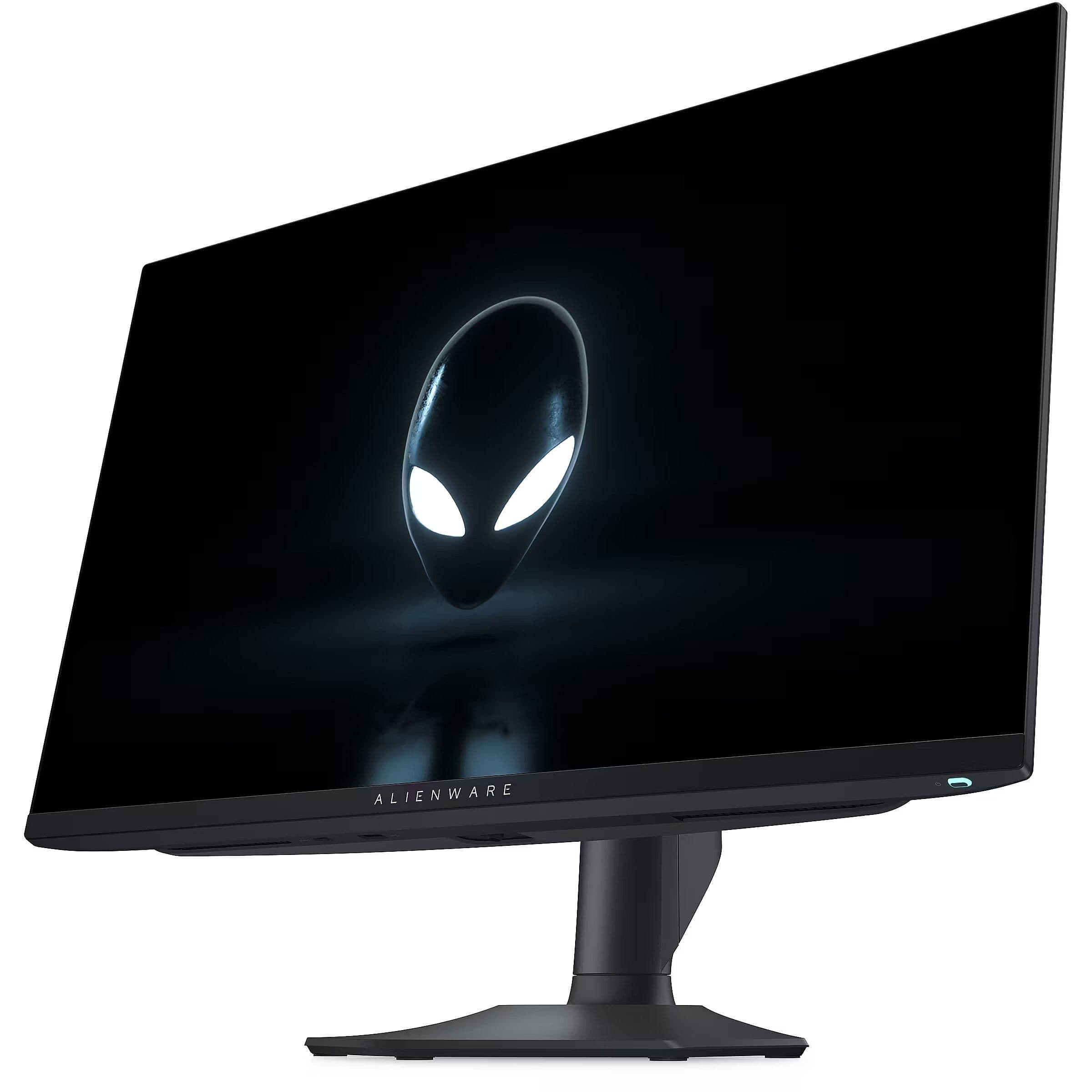
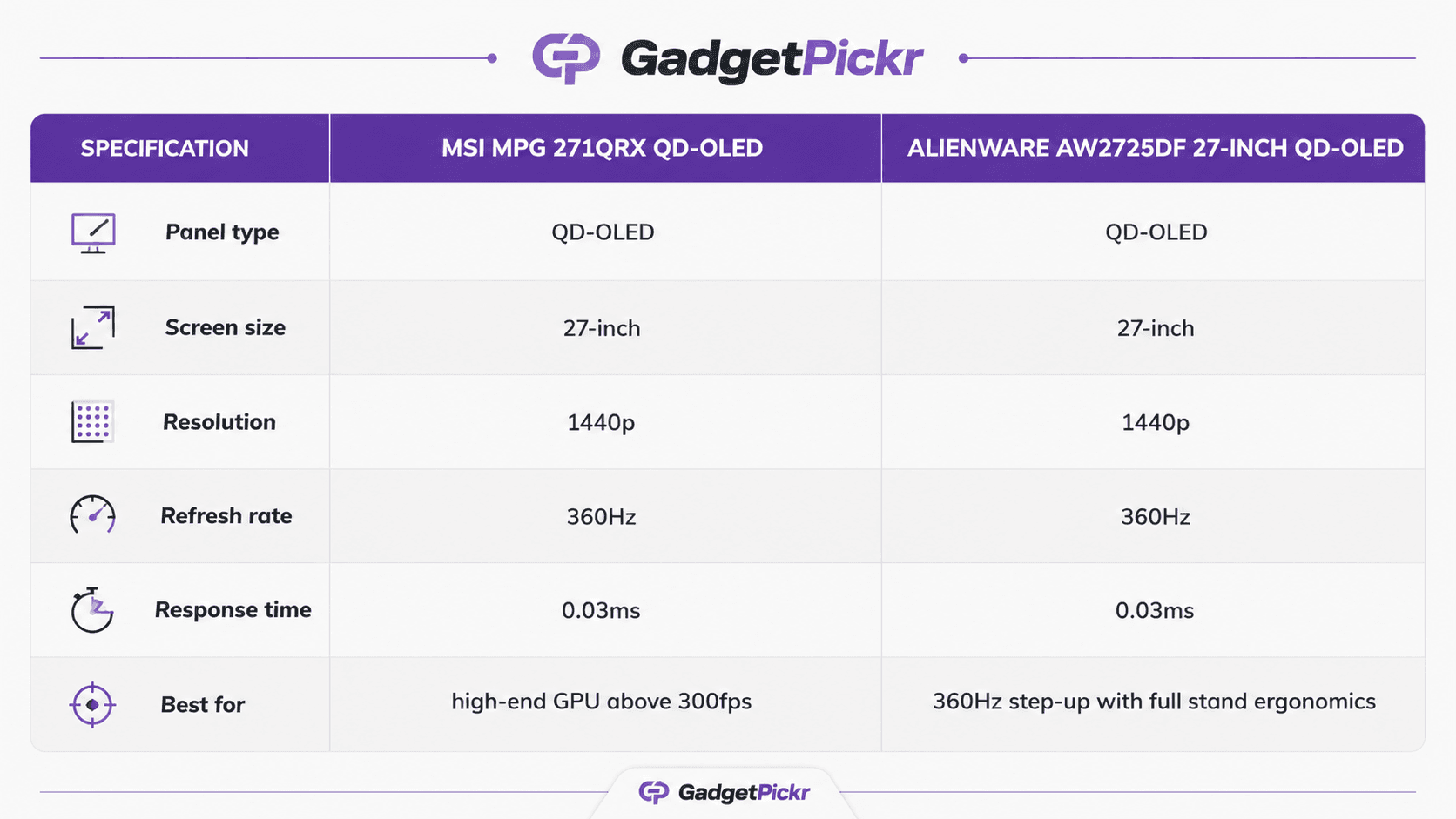
Running a high-end GPU that pushes 300fps and above? Then step up to a 360Hz panel, like the Alienware AW2725DF 27-inch QD-OLED, and let the display keep pace instead of throttling what your system already produces. Buying refresh you cannot feed is money parked in an unused spec.
Step 2: Pick the panel that matches your priority
If eliminating ghosting outranks everything else on your list, choose QD-OLED. The MSI MPG 271QRX QD-OLED deliver a 0.03ms response time, which is fast enough that nothing trails behind a target crossing the screen.
If budget is the binding constraint, IPS and revised VA panels like the Samsung 27-inch Odyssey G5 (G51F) still deliver strong 1440p value, though they carry 1ms (MPRT) response times rather than OLED's near-instant transitions. That gap shows up on fast horizontal pans, not on static menus.
Recommended product categories
Genre decides tier. A tactical shooter played for ranking points asks for different hardware than a hero shooter played four nights a week, so match the category to how you actually queue up.
Flagship 360Hz QD-OLED displays
These sit at the top for twitch-reaction titles like Counter-Strike 2 and Valorant. The Alienware AW2725DF 27-inch QD-OLED and MSI MPG 271QRX QD-OLED offer 0.03ms response times, which strips visual blur out of rapid turns and keeps a moving head hitbox readable. Pick this tier only if your GPU clears 300+ frames per second in your main game.
Balanced 180Hz QHD value displays
Working with a real budget? Look at 180Hz 1440p instead. Models such as the Samsung 27-inch Odyssey G5 (G51F) and the Samsung Odyssey OLED G5 (G50SF) pair sharp QHD resolution with fluid motion, and the G50SF brings QD-OLED response to the lower refresh tier — the right call if you want OLED motion without paying for 360Hz hardware you cannot saturate.
Common mistakes
The most expensive error is buying resolution first. 4K looks sharp in immersive single-player worlds, but it demands graphics power that drags frame rates down in Valorant, CS2, or Overwatch 2. Drop to 1440p or 1080p and you get higher, steadier frame rates, smoother tracking, and lower system latency.
Second trap: taking a response-time figure at face value. A rating of 1ms MPRT or 0.5ms GtG tells you nothing about how the panel's overdrive behaves in practice. Push overdrive too hard and you get reverse ghosting and pixel overshoot — bright halos trailing enemies during fast camera movement. Read reviews that test overdrive modes, not just the spec line.
Screen size trips up plenty of players as well. At 32 inches and wider, your eyes travel to read the edges of the map, and every trip costs attention that belonged on the crosshair. A 27-inch 1440p or 24-inch 1080p layout keeps the minimap, health, and ammo inside one glance.
One more: pairing a very high refresh display with a bottlenecked CPU or thin RAM. The panel then waits on the rest of the system, and you paid for headroom you never reach.
Buying checklist
Run these checks on the product page itself before you hit buy — every item below is printed in a spec table or a photo on the listing.
Confirm the refresh rate against your own benchmark numbers, whether you are targeting 180Hz, 280Hz, or 360Hz, and make sure your graphics card meets or beats it in your main title.
Find the port list and look for DisplayPort 1.4 or HDMI 2.1. Those carry full refresh rate at native resolution without compression tricks; older ports quietly cap you.
Check that adaptive sync is named explicitly — AMD FreeSync Premium Pro or NVIDIA G-Sync Compatible — and note which port supports it, so you get tear-free frames without added input lag.
Scan the stand specs for height, tilt, swivel, and pivot. Fixed stands force posture compromises over long sessions. If desk space is tight, verify the VESA mounting pattern is listed so an arm will fit.
Last, make sure the listing names the panel technology outright, QD-OLED or fast IPS, rather than saying "gaming panel." That single line is what ties this whole guide together: how to choose a gaming monitor for competitive esports comes down to response time and motion clarity in the games you actually play.
Recommended Products
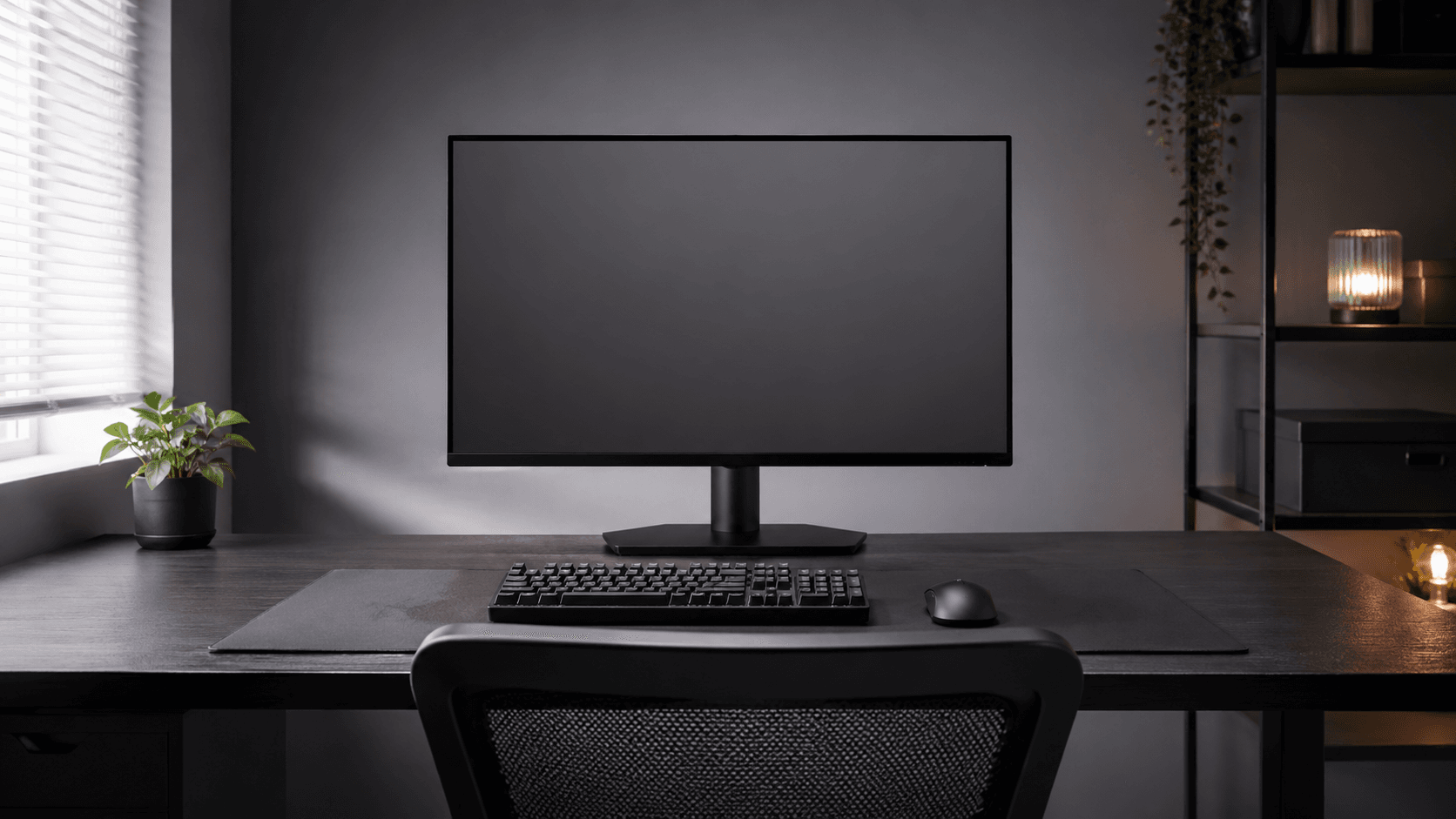
Both picks below are 27-inch QD-OLED panels at the 360Hz tier, and they exist here as worked examples of the rules above rather than as the only valid answers. Buy the one whose ports and stand match your desk.
MSI MPG 271QRX QD-OLED
This is the reference point for Step 2: QD-OLED response paired with a 360Hz ceiling, aimed at players whose GPU already produces the frames to fill it.
Pros
- 0.03ms response time removes trailing behind fast-moving targets
- 360Hz refresh suits Counter-Strike 2 and Valorant frame rates
- 27-inch 1440p format keeps HUD elements in one glance
Cons
- Wasted spend if your GPU cannot sustain 300+ frames per second
- Confirm the port list and adaptive sync support before ordering
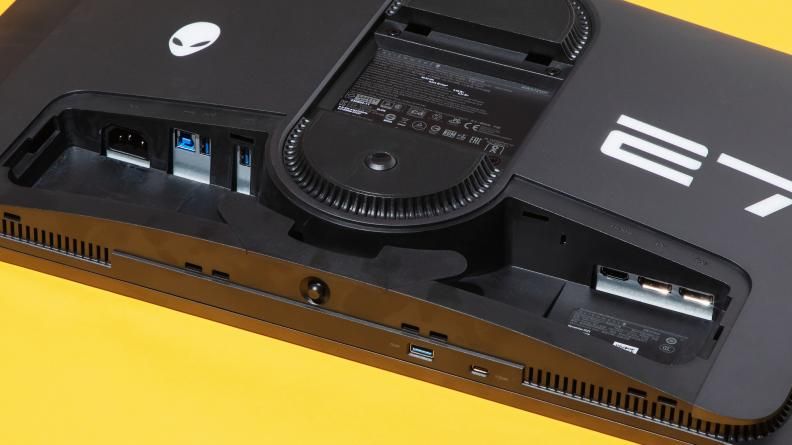
Alienware AW2725DF 27-inch QD-OLED
Same tier, same core argument. Choose it if the stand adjustments and connector layout fit your setup better than the MSI's.
Pros
- 360Hz QD-OLED panel built around motion clarity, not contrast marketing
- 27-inch 1440p sizing keeps the full screen inside peripheral vision
- QD-OLED transitions avoid the overdrive artifacts common on LCD panels
Cons
- Overkill next to a mid-range GPU that lands closer to 180fps
- Verify DisplayPort version and VESA pattern against your desk setup
Sources & References
Specifications and claims in this analysis were cross-referenced against the sources below.
- Alienware AW2725DF review: “Dell's QD-OLED monitor is ...gamesradar.com
- Dell Alienware AW2725DF Review - TFTCentraltftcentral.co.uk
- Dell Alienware AW2725DF Monitor Review - RTINGS.comrtings.com
- Alienware 27-inch 2K QD-OLED (AW2725DF) gaming monitor reviewlaptopmag.com
- Alienware AW2725DF review: Exceedingly fast and beautifulreviewed.com
- Alienware AW2725DF review: OLED's refresh rate cranked up to 360Hzpcworld.com
- Alienware AW2725DF review - Gaming Monitorspcgamer.com
- MSI MPG 271QRX review: a feature-rich gaming ...techradar.com
Frequently Asked Questions
Pick by GPU. If your card holds 240fps or more at 1440p, take the sharper 27-inch panel. If it struggles, drop to 24-inch 1080p and spend the savings on refresh rate instead.